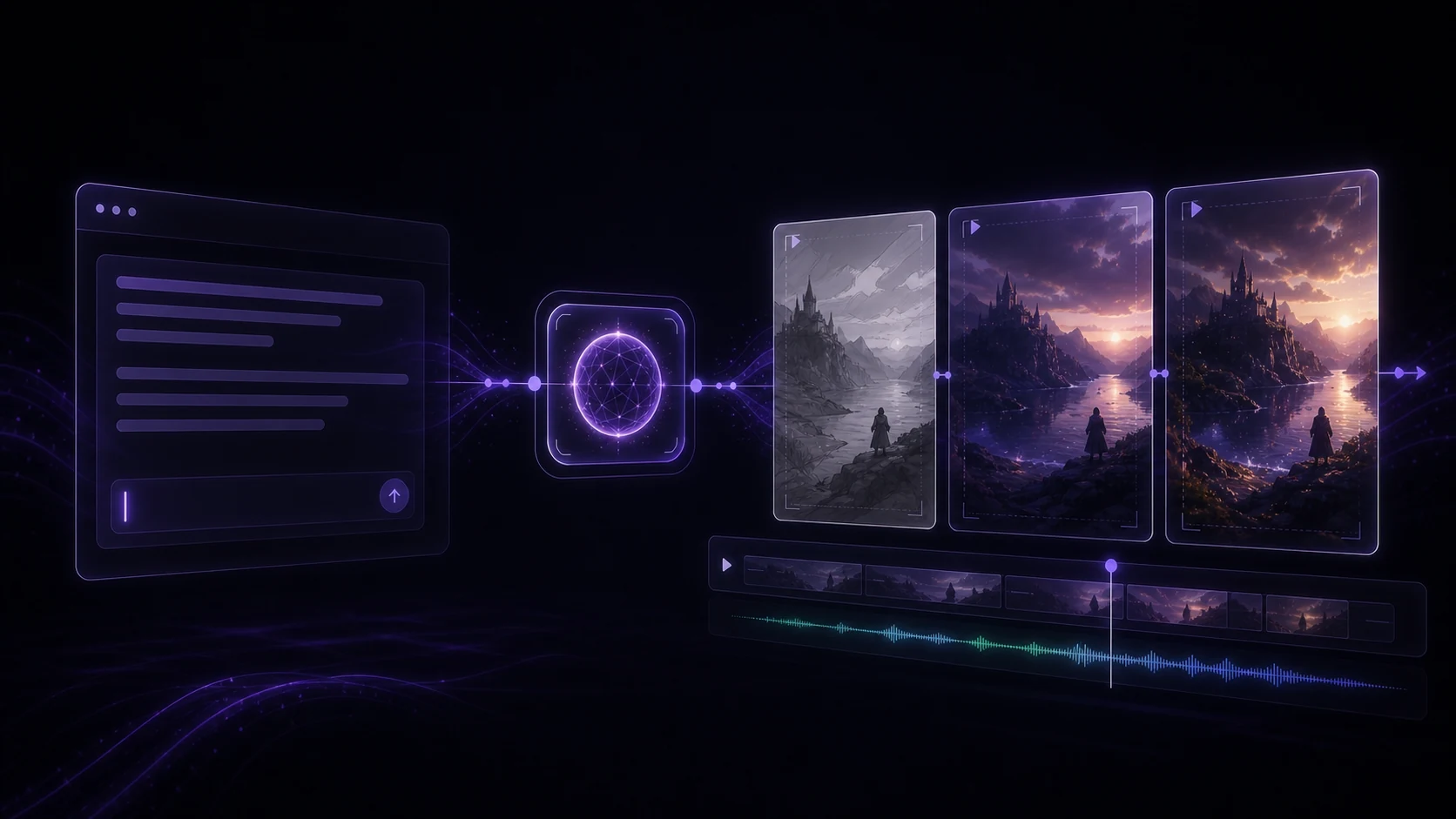
Creating a video used to mean hiring a production crew, renting equipment, and spending days in post-production. Today, you can type a sentence and have a polished video ready in minutes. Text-to-video AI has moved from novelty to practical tool — and if you know how to use it well, the results can be genuinely impressive.
This guide walks you through the entire process: writing prompts that actually work, picking the right visual style, customizing your output, and exporting for wherever your video will live.
Part 1: Writing Effective Prompts
Your prompt is the blueprint for everything the AI builds. A vague prompt produces a vague video. A specific, structured prompt produces something you can actually use.
The anatomy of a strong prompt:
- Subject — who or what is the focus? ("a software developer working at a desk")
- Action — what are they doing? ("typing code, glancing at two monitors")
- Environment — where is this happening? ("modern open-plan office, golden hour light")
- Mood/tone — what should it feel like? ("focused, slightly cinematic")
Compare these two prompts:
- Weak: "a person working"
- Strong: "a young software developer typing quickly at a standing desk in a bright modern office, shallow depth of field, cinematic color grading"
The second gives the model enough detail to make decisions that align with your vision rather than defaulting to generic output.
Keep prompts under 100 words. Beyond that, the model may struggle to weight all the details equally and produce inconsistent results.
Part 2: Choosing Visual Styles
VidReels offers several visual styles that shape the overall look of your video. Choosing the right one upfront saves significant editing time later.
Common style options:
- Cinematic — wide aspect ratios, film grain, dramatic lighting. Great for brand storytelling.
- Corporate/Clean — neutral tones, sharp focus, professional settings. Ideal for explainer videos and internal training.
- Animated — illustrated or motion-graphic aesthetic. Works well for abstract concepts.
- Documentary — handheld feel, natural lighting, observational framing. Best for authentic, human-centered content.
Style isn't just visual preference — it signals intent to viewers. A cinematic style for a product demo elevates perceived quality. A documentary style for a testimonial feels trustworthy.
Part 3: Customizing Your Output
Once you have a base generation, customization is where good becomes great.
Key customization options:
- Duration — most use cases fall between 15 seconds and 2 minutes. Shorter clips perform better on social media; longer clips work for landing pages and presentations.
- Aspect ratio — 16:9 for YouTube and presentations, 9:16 for TikTok and Instagram Reels, 1:1 for feed posts.
- Camera motion — static shots feel stable and professional; slow pans or zooms add energy. Avoid fast motion unless it matches your prompt.
- Music and sound — VidReels can generate or suggest background music. Match the tempo to your video's pacing. Upbeat tracks for product launches; ambient tracks for thought leadership.
Avoid layering too many customizations at once on your first attempt. Generate a base version, review it, then adjust one variable at a time. This makes it easier to identify what's working.
Part 4: Export Options and Best Practices
Your export settings should match where the video will be published.
Format recommendations:
| Platform | Resolution | Format | Max File Size | |---|---|---|---| | YouTube | 1080p / 4K | MP4 (H.264) | 128GB | | Instagram Reels | 1080x1920 | MP4 | 1GB | | TikTok | 1080x1920 | MP4 | 500MB | | LinkedIn | 1080p | MP4 | 5GB | | Web embed | 720p | MP4 (H.264) | As small as possible |
Always export at the highest quality your target platform supports, then let the platform compress. Starting with a compressed export and re-compressing at upload degrades quality noticeably.
Before you export:
- Watch the full clip at 100% speed — things that look fine at a glance often have frame-rate issues or abrupt cuts at normal playback
- Check audio levels if you've added voiceover or music
- Verify the aspect ratio matches your intended placement
Conclusion
Text-to-video is genuinely accessible now, but it rewards users who take the time to write structured prompts, choose styles intentionally, and iterate on their output. VidReels is designed to make each of these steps straightforward — start with a clear prompt, match your style to your goal, customize the details, and export at the right spec.
The fastest way to improve is to generate, review, and adjust. Your second video will always be better than your first.