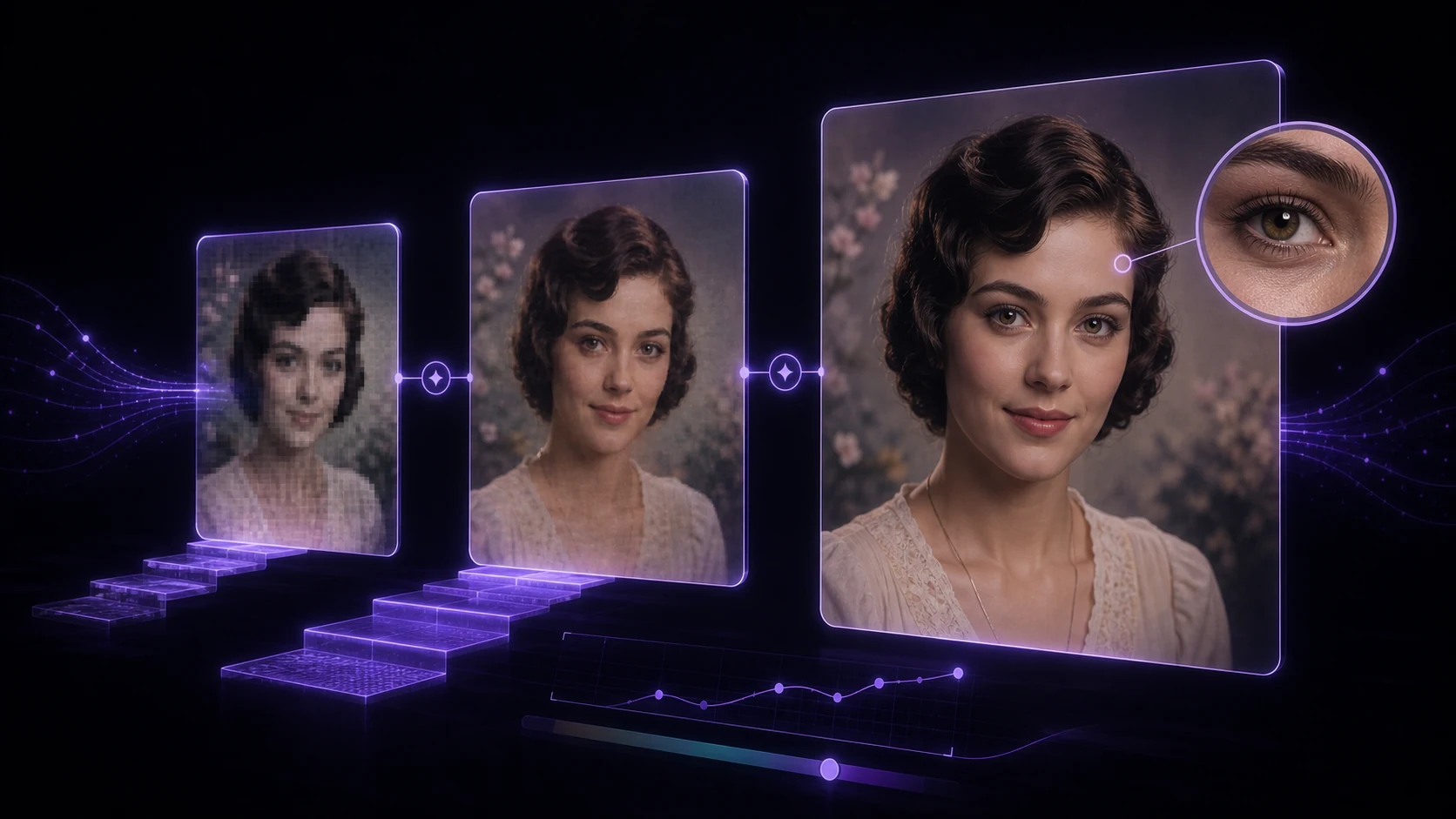
Photoshop is still the industry standard for complex professional image editing — and likely will be for some time. But for a large portion of everyday image editing tasks, AI tools now do the work faster, require less skill, and produce results that are difficult to distinguish from manual work.
This guide covers five specific techniques where AI has genuinely replaced the traditional Photoshop workflow for most users.
Part 1: Object Removal
Traditional Photoshop approach: Content-Aware Fill or the Clone Stamp tool. Requires careful selection, often multiple passes, and manual touch-ups where the fill produces obvious repeating patterns.
AI approach: Select the object you want to remove (brush or click selection), and the AI fills the area with contextually appropriate content — matching texture, lighting, perspective, and background patterns.
Where AI wins:
- Removing objects on complex backgrounds (grass, crowds, textured surfaces)
- Removing multiple objects in a single operation
- Backgrounds with consistent patterns (brick, tile, fabric)
Where Photoshop is still better:
- Removing objects that overlap important foreground elements where precise boundaries matter
- Removing large central objects that define most of the image
For object removal, the quality of your selection boundary matters more than the size of the object. A clean selection edge gives the AI accurate information about what to fill. Rough selections produce rough results.
Practical workflow: Use AI object removal for quick passes on environmental cleanup — removing lampposts, litter, signs, or background people from product and lifestyle photography. For architectural photography alone, this can save 30+ minutes per image.
Part 2: Style Transfer
Traditional Photoshop approach: Layer blending, custom actions, plugin filters, or labor-intensive manual painting to apply an artistic style to a photograph. Realistic style transfer was essentially impossible without specialized software.
AI approach: Select a target style (oil painting, watercolor, pencil sketch, specific art movement) and apply it to any image. The AI restructures the image's texture, brushwork, and tonal qualities to match the style while preserving the original composition.
Common applications:
- Converting product photography to illustrated assets for print materials
- Creating artistic versions of portraits for social media
- Generating on-brand illustrated backgrounds
Quality tips:
- Style transfer works best on images with clear subject/background separation
- Apply style transfer to duplicates, not originals — effects are difficult to reverse
- Reduce intensity for subtle results; full-intensity style transfer often looks heavy-handed on photographs
Part 3: Background Swap
Traditional Photoshop approach: Manual selection or Refine Edge, background layer replacement, color matching between subject and new background, shadow reconstruction.
AI approach: Upload subject, select or generate a new background, and the AI handles the composite — including edge blending, color temperature matching, and shadow generation.
AI background swap genuinely replaces Photoshop for:
- E-commerce product photography (consistent white or branded backgrounds)
- Portrait headshots with studio or environment backgrounds
- Social media assets requiring consistent backdrop
Photoshop is still preferred for:
- Composites where physical accuracy is critical (architecture, product campaigns)
- Backgrounds requiring precise light matching with the original scene
AI background swaps occasionally produce unnatural shadow directions or mismatched color temperatures. Always check the subject's contact shadow against the floor or surface of the new background — this is where most compositing errors appear.
Part 4: Text-Guided Editing (Inpainting)
This is the technique that most dramatically shifts what's possible without Photoshop expertise. Text-guided editing lets you describe a change in plain language and the AI makes it — without manual selection or layer management.
Examples of text-guided edits:
- "Change the jacket to dark blue"
- "Replace the wooden table with a marble surface"
- "Add a potted plant in the corner"
- "Remove the people in the background"
Traditional Photoshop equivalent: Manual selection, layer masking, painting or compositing replacement elements — each requiring separate steps and significant expertise.
Practical use cases:
- Product color variants without re-shooting
- Seasonal or contextual changes to marketing imagery
- Environmental adjustments (changing weather, lighting conditions, season)
The key limitation is precision — text-guided edits work on regions, not individual pixels. For edits requiring exact boundary control, manual tools are still more reliable.
Part 5: Batch Processing
Traditional Photoshop approach: Actions (recorded macros) and Batch Process. Powerful but requires recording the action correctly, managing file naming, and handling exceptions manually.
AI approach: Upload multiple images, define the operation (background removal, enhancement, style application, color correction), and process all of them with a single operation — with AI adapting its processing to each image's individual characteristics.
Where AI batch processing is superior:
- Operations that require contextual judgment (background removal, object detection)
- Processing images with variable lighting, framing, or content
- Workflows that combine multiple operations (remove background + upscale + color correct)
Practical workflow with VidReels:
- Upload your batch
- Select operations (the order matters — correct before enhance before upscale)
- Set output naming convention and format
- Process and review a sample before full export
Organize your input images by visual similarity before batch processing. Images from the same shoot (consistent lighting, background, and composition) produce more consistent outputs than mixed batches.
Conclusion
AI image editing isn't replacing Photoshop for complex professional work — but it has already replaced it for the majority of routine editing tasks most creators and marketers actually perform day-to-day. Object removal, style transfer, background swap, text-guided editing, and batch processing are all now faster and more accessible via AI tools. The practical question for most teams is where to draw the line — and that line keeps moving as the tools improve.